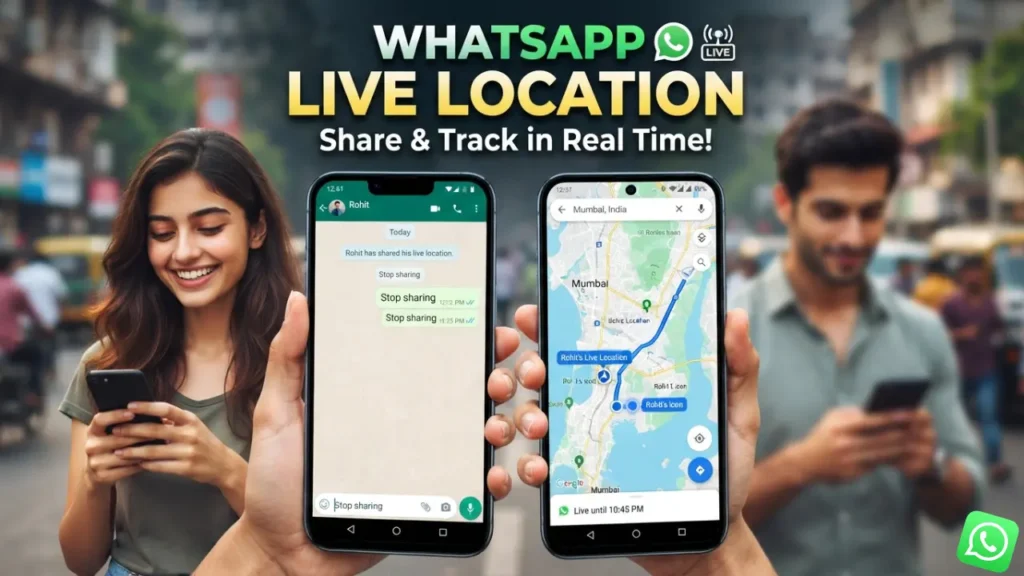
Nowadays, we use WhatsApp not only for chatting but also for many important daily tasks. Many times, we need to send our exact location to a friend, family member, or relative. Instead of explaining directions over a phone call again and again, WhatsApp’s Live Location feature makes this task extremely easy.
If you are in a new city, traveling at night, sitting in a cab, or simply want your family members to know where you are in real time, WhatsApp’s Live Location feature can be very helpful. Not only that, if someone has shared their Live Location with you, viewing it is also very simple.
In this article, we will understand in easy language how to share your Live Location on WhatsApp, how to see someone else’s shared Live Location, how this feature works, and how to use it properly.
What is WhatsApp Live Location?
WhatsApp Live Location is a feature that allows you to share your current location with a person or a group for a specific period of time. It is different from sending a normal location.
When you send your Current Location, the other person only sees where you were at that moment. However, when you share your Live Location, your location keeps updating continuously, allowing the other person to track your movement in real time until the selected time expires or you manually stop sharing.
Things to Keep in Mind Before Sharing Your Live Location on WhatsApp
Before using the Live Location feature, a few settings must be enabled on your phone. If any of these settings are turned off, the feature may not work properly.
- Your phone’s GPS or Location service should be turned on.
- WhatsApp must have permission to access your location.
- Your internet connection should be active.
- Make sure your WhatsApp application is updated to the newest available version for the best experience.
Once these requirements are met, Live Location works smoothly.
How to Share Your Live Location on WhatsApp?
Sharing your Live Location with a person or a group is very easy.
First, open WhatsApp and go to the chat of the person or group with whom you want to share your location. Next, tap the Attachment (paperclip) icon near the message box and select Location.
WhatsApp will detect your current location. Here, you will see the Share Live Location option. Tap on it.
Now, choose how long you want your Live Location to remain visible.
- 15 Minutes
- 1 Hour
- 8 Hours
If you want, you can also add a short message before tapping the send button. Once sent, your Live Location will immediately be shared.
What is the Difference Between Share Live Location and Current Location on WhatsApp?
Many people think these two features are the same, but they work differently.
Current Location only sends your location at that specific moment. If you move somewhere else later, the recipient will not see your updated location.
On the other hand, Share Live Location continuously updates your changing location. If you are traveling, the other person can follow your movement in real time.
That is why Live Location is considered much more useful during travel or for safety purposes.
How to See Someone’s Shared Live Location on WhatsApp?
If someone has shared their Live Location with you, viewing it is very simple.
Open the WhatsApp chat of the person who shared their Live Location. Tap on the map shown in the chat.
The map will open and display the person’s current location. If they are moving, their location will continue to update automatically, allowing you to see where they are and in which direction they are traveling.
If the Live Location has been shared in a group, all group members can view it.
Choose How Long You Want Others to Track Your Live Location
WhatsApp currently provides three duration options.
15 Minutes, 1 Hour, and 8 Hours.
You can choose any of these options while sharing your Live Location. Once the selected time ends, Live Location automatically stops sharing.
If needed, you can also stop sharing before the selected time expires.
How to Stop Sharing Live Location on WhatsApp?
If you accidentally shared your Live Location or no longer want others to see it, stopping it is very easy.
Open the chat where you shared your Live Location. You will see the Stop Sharing option. Tap on it, and your Live Location will immediately stop updating for the recipient.
Is WhatsApp Live Location Safe?
According to WhatsApp, Live Location is protected with End-to-End Encryption, which means only the people you choose can see your location.
However, for better privacy and security, it is important to keep a few things in mind.
- Share your Live Location only with trusted people.
- Never share your Live Location with strangers.
- Stop sharing as soon as it is no longer needed.
- Avoid sharing Live Location unnecessarily in public groups.
Following these simple precautions helps keep your privacy protected.
When is Live Location Most Useful?
Today, this feature is extremely useful in many situations.
If a family member is traveling late at night, they can share their Live Location so their loved ones can track them for safety. It is also very helpful while traveling in a cab.
When meeting friends at a new place, there is no need to explain directions repeatedly. Live Location is also useful during trekking, long road trips, and large public events.
What to Do If Live Location Is Not Working?
Sometimes users find that their Live Location is not updating properly. In such cases, there is no need to worry.
First, make sure your phone’s GPS is turned on. Then check whether WhatsApp has permission to access your location. Your internet connection should also be active, and Battery Saver mode should be turned off because it can limit GPS functionality on some phones.
If the problem still continues, update WhatsApp to the latest version and restart your phone before trying again.
Does Live Location Work Without an Internet Connection?
No. An active internet connection is required for Live Location to work.
If your internet connection is lost or your network becomes unavailable, your location will stop updating. Once the internet connection is restored, Live Location will automatically start updating again.