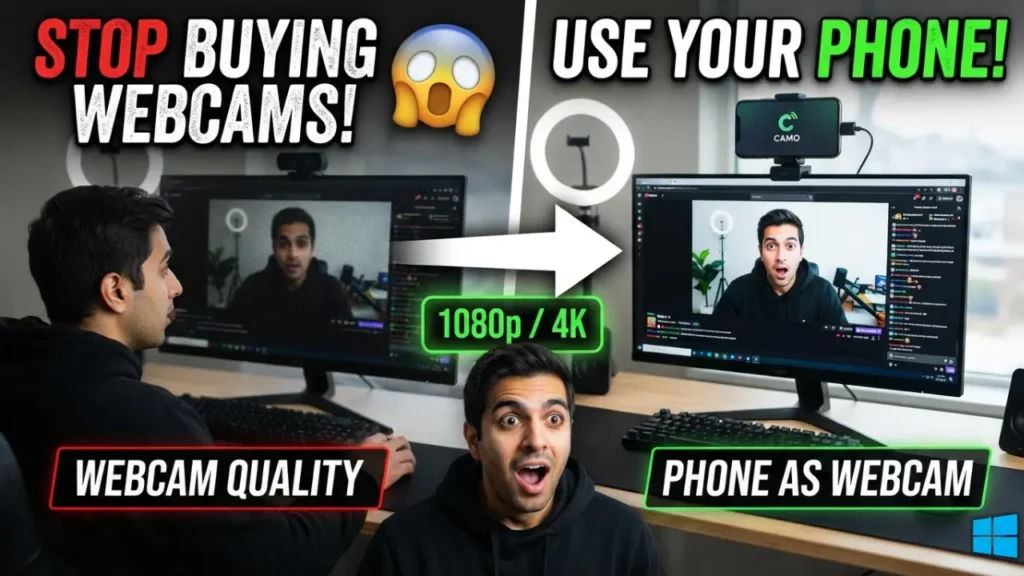
These days, online meetings, video calls, live streaming, and virtual interviews have become a part of everyday life. But what if your laptop’s webcam stops working or your desktop PC doesn’t have a webcam at all? Most people immediately think about buying a new webcam, but the truth is that you already have a much better camera in your pocket your Android smartphone.
If your Android phone has a good camera, you can easily use it as a webcam for your Windows computer in just a few minutes. This not only saves money but also gives you much better video quality than most built-in laptop webcams.
If you’re wondering how to use your Android phone as a webcam on Windows, this guide will explain everything in simple and easy to understand language.
Can You Use an Android Phone as a Webcam?
Yes, absolutely. Modern Android phones and Windows computers support features that allow your smartphone camera to work as a webcam.
Once connected, your phone can be used as the camera for Zoom, Google Meet, Microsoft Teams, Skype, OBS Studio, and many other video conferencing or streaming applications.
Since most smartphone cameras are far better than laptop webcams, you can enjoy clearer, sharper, and more professional-looking video during calls and live streams.
What Do You Need to Connect Your Android Phone as a Webcam?
You don’t need expensive equipment to get started. A few basic things are enough.
You’ll need an Android phone running Android 9 or later, a Windows 10 or Windows 11 computer, a USB cable or a stable Wi-Fi connection, and either Microsoft’s Link to Windows feature or a trusted webcam app.
If both your phone and computer are updated to the latest software versions, the setup process becomes even easier.
The Easiest Way to Use Your Android Phone as a Webcam on Windows
If you’re using a modern Android phone with Windows 11, Microsoft’s built-in solution is one of the easiest options.
Start by enabling the Link to Windows feature on your Android phone. Then open the Phone Link app on your Windows PC and sign in with the same Microsoft account on both devices.
After pairing the devices successfully, grant the necessary camera permissions. Once everything is connected, your Android phone will appear as a webcam option in supported video calling applications.
This method is simple, reliable, and doesn’t require any additional hardware.
How to Use Your Android Phone as a Webcam with a USB Cable
If you want the most stable connection and the best video quality, using a USB cable is the ideal choice.
First, enable Developer Options on your Android phone and turn on USB Debugging. Next, install your preferred webcam application on both your phone and your Windows computer.
Connect your phone to the computer using the USB cable and follow the instructions provided by the app. Within a few moments, your smartphone camera will start working as a webcam.
The biggest advantage of a USB connection is that it offers lower latency, better video stability, and keeps your phone charged while you use it.
How to Use Your Android Phone as a Webcam Over Wi-Fi
If you prefer a wireless setup, you can also connect your phone over Wi-Fi.
Make sure both your Android phone and Windows computer are connected to the same Wi-Fi network. Open the webcam app on both devices and complete the pairing process.
Within seconds, your phone’s camera feed will appear on your computer, and you can select it as the camera in your favorite video calling application.
For the best experience, use a fast and stable Wi-Fi connection to avoid lag or interruptions during calls.
How to Select Your Android Phone as the Camera
After your phone is successfully connected, you simply need to choose it as the camera inside your video conferencing software.
Open the settings of your preferred application, go to the video or camera section, and select your Android webcam from the available camera list.
Once selected, all your video calls will use your phone’s camera instead of your computer’s built-in webcam.
Benefits of Using an Android Phone as a Webcam
Using an Android phone as a webcam comes with several advantages. The biggest benefit is that you don’t have to spend money on a dedicated webcam.
You’ll also enjoy higher video quality, better autofocus, HDR support, and in many cases even Full HD or 4K camera performance, depending on your phone.
Some of the major benefits include:
- Better video quality than most laptop webcams.
- No need to purchase a separate webcam.
- Excellent for live streaming and content creation.
- Professional-looking video during online meetings and interviews.
- Supports both USB and Wi-Fi connections.
Tips for the Best Webcam Experience
If you’re planning to use your phone as a webcam for long meetings or streaming sessions, following a few simple tips can make a big difference.
Place your phone on a tripod or stable stand to avoid shaky video. Keep it connected to a charger if you’re using it for extended periods.
Always sit in a well-lit room because even the best cameras perform better with good lighting. Before starting your meeting, clean the camera lens to ensure a sharp image.
If you’re using Wi-Fi, make sure your internet connection is fast and stable for smooth video performance.
Can an Android Phone Replace a Dedicated Webcam?
For most users, the answer is yes.
If you mainly use Zoom, Google Meet, Microsoft Teams, online classes, YouTube Live, Facebook Live, or virtual interviews, an Android phone can easily replace a traditional webcam.
However, professionals who require multi-camera setups or record videos for several hours every day may still prefer a dedicated webcam or DSLR camera.
For the average user, though, an Android smartphone is an affordable and highly capable alternative.
Best Apps to Turn Your Android Phone into a Webcam
If your phone doesn’t support Microsoft’s built-in webcam feature, there are several reliable third-party apps that can help.
Some of the most popular options include:
- DroidCam
- Iriun Webcam
- Camo
- IP Webcam
These apps work well with Windows computers and support both USB and Wi-Fi connections.