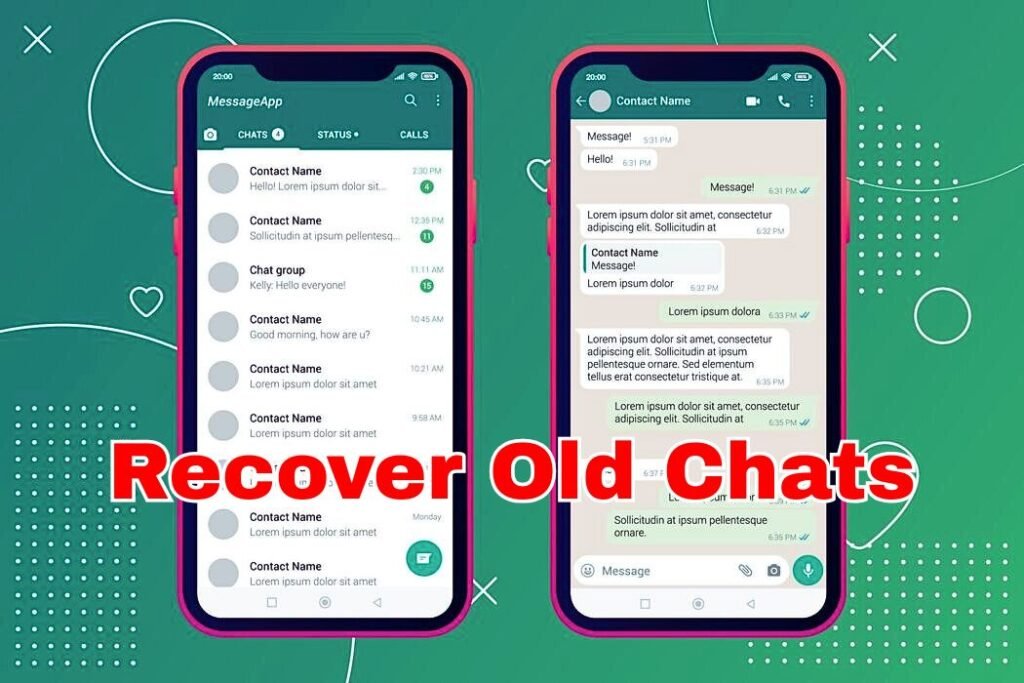
Nowadays, WhatsApp has become an inseparable part of our daily life. From the moment we wake up, the first thing many people do is check their WhatsApp messages. Throughout the day, we keep chatting, sharing photos, and exchanging videos. But sometimes, we need to find an old message or photo and just can’t seem to locate it. Maybe it’s buried deep in the chat history, or we accidentally deleted it. That’s when it gets frustrating scrolling endlessly just to find that one old message.
If you’ve ever been in that situation, don’t worry. In this article, we’ll tell you how to easily find old WhatsApp chats and messages without any hassle, using simple methods that really work.
Find Old Messages Using WhatsApp Search Feature
WhatsApp has a powerful search feature that lets you find any word, sentence, or name across all your chats. Simply open WhatsApp and tap the search icon at the top. Then, type the word or phrase you remember. Instantly, WhatsApp will show you all the chats and messages where that word appears.
This feature is perfect when you remember what you said, but not exactly when or to whom you said it. It saves you from endless scrolling and helps you locate messages in seconds.
Search Messages Inside a Specific Chat
If you want to search within a specific person’s chat, the process is slightly different. Open that person’s chat, tap on their name at the top, and select “Chat Search” (or “Search in Conversation”). Now, type the word or phrase you’re looking for. WhatsApp will show only those results from that specific chat.
This is one of the most accurate and time-saving methods to find old messages between you and one contact.
Recover Old Chats from Backup
Sometimes, we accidentally delete chats or lose them after switching to a new phone. In such cases, WhatsApp’s backup feature can save the day. If you’ve enabled chat backup earlier, you can easily restore old messages.
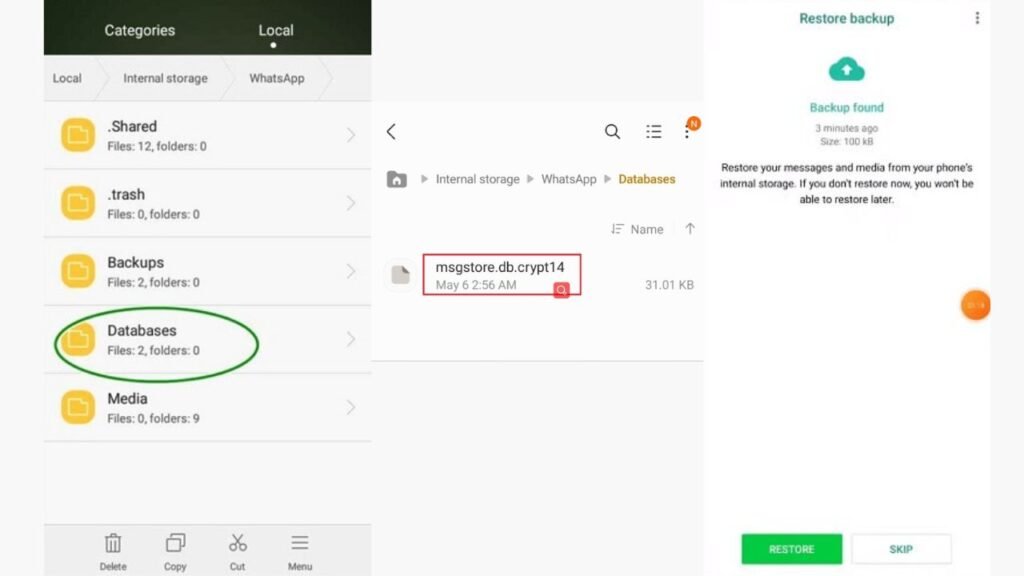
Just uninstall WhatsApp and reinstall it. When you verify your number again, WhatsApp will ask if you want to restore the backup. Tap on ‘Restore’, and your old chats, photos, and videos will reappear just like before.
Restore Messages from Google Drive Backup
If you use Android and have enabled Google Drive backup, you can restore chats from there too. WhatsApp automatically backs up your chats daily, weekly, or monthly depending on your settings.
If you need messages from a specific date, you can restore the backup from that time. But remember, restoring an older backup might delete newer messages, so make sure to save important data before doing this.
Retrieve Old Chats from Local Storage
Even if you don’t use Google Drive, WhatsApp still saves your chat history locally on your phone. To find it, open your File Manager and go to WhatsApp > Databases. Inside, you’ll find backup files with dates in their names.
Choose the file from the date you want, rename it to msgstore.db.crypt14, then uninstall and reinstall WhatsApp. When prompted to restore chats, choose ‘Restore’ your old messages will be back.
Keep Chats Safe with the Export Chat Feature
If you want to permanently save a conversation with someone or store it outside WhatsApp, use the Export Chat feature. Open the chat, tap the contact name at the top, and choose Export Chat. You can export it with or without media (photos, videos, etc.).
WhatsApp will create a file that you can save to your email or file storage. Later, you can open and read it anytime even without WhatsApp.
Find Old Photos, Videos, and Documents Easily
Often, we only want to find a photo, video, or document shared long ago. Instead of scrolling through the entire chat, simply open the chat, tap the contact or group name, and select Media, Links, and Docs.
Here, you’ll see all the media shared in that chat, neatly organized. You can quickly browse through and find what you’re looking for without wasting time.
Search Old Messages on WhatsApp We
If you use WhatsApp Web on your computer, searching for old messages becomes even easier. There’s a search bar at the top just type any keyword, and it will search through your entire chat history.
Using a larger screen makes it faster to find specific messages or files, especially if you deal with a lot of conversations daily.
Finding Messages in Group Chats
Group chats can be chaotic hundreds of messages every day. Finding something from weeks or months ago can seem impossible. But WhatsApp makes it simple.
Open the group, tap its name, and choose Search Chat. Type any keyword, and WhatsApp will instantly show all the messages in that group containing that word. It’s fast, efficient, and saves a lot of effort.